
商品説明
この商品にはAIで生成されたコンテンツが含まれています。
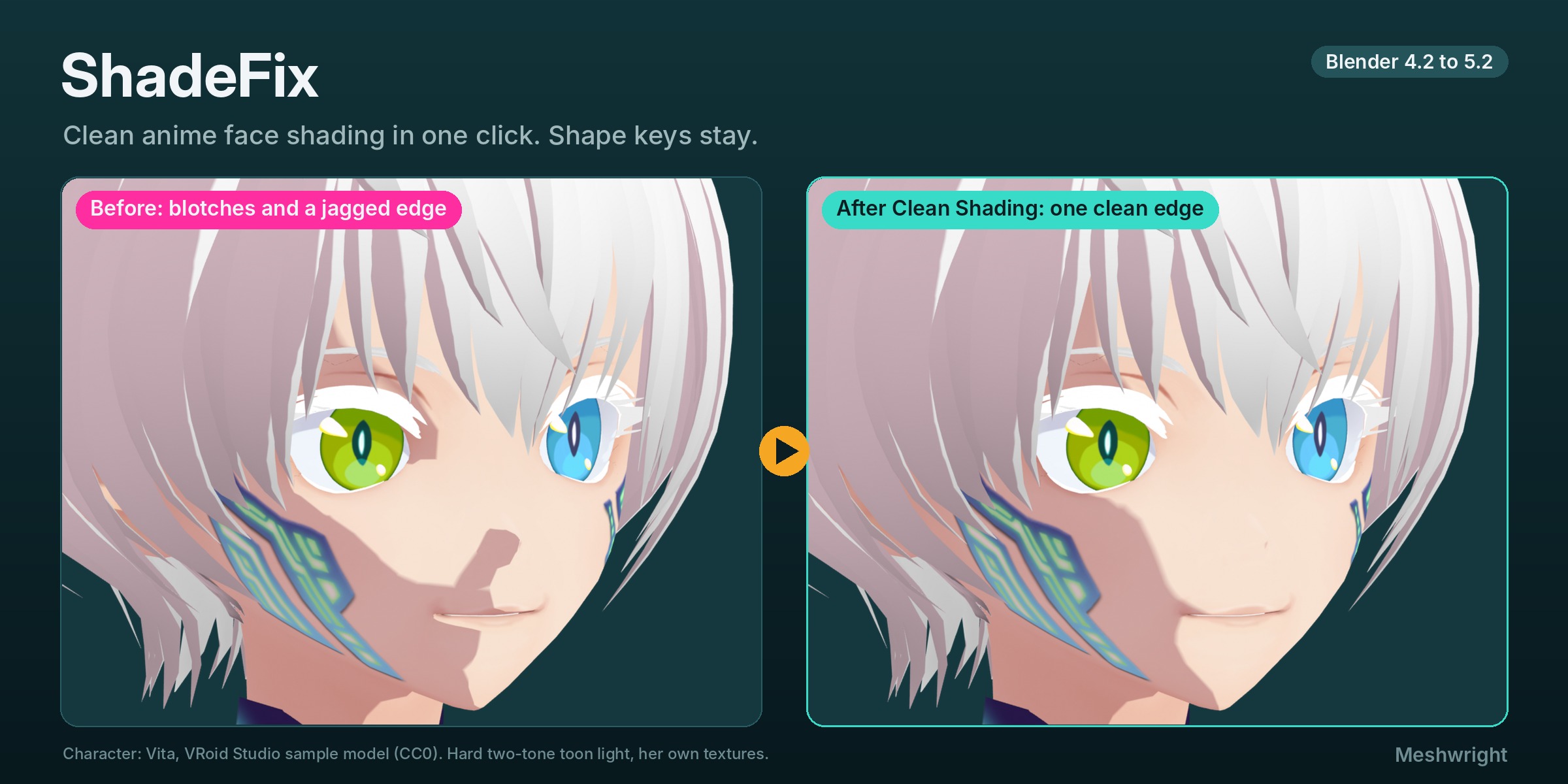
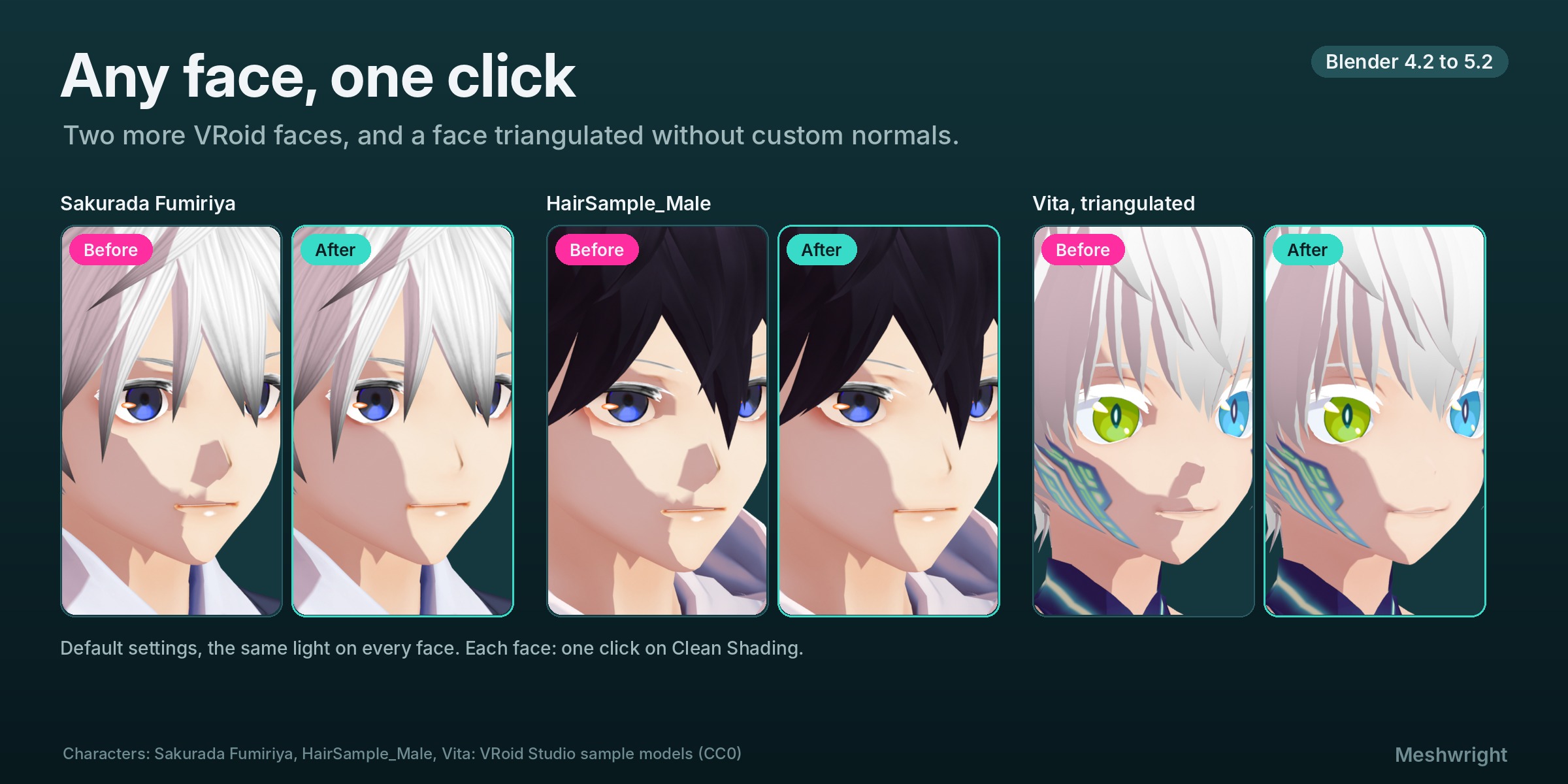
Turn a toon light around an anime face and the shadow breaks into pieces: a dark blot beside the nose, a lit spot on a shaded cheek, a jagged edge down the middle of the face. The face's normals follow every small form of the mesh, and a two-tone shader shows all of them. Artists fix this by hand with a proxy sphere and a Data Transfer modifier, but Blender cannot apply that modifier on a mesh with shape keys, and every avatar face has them. ShadeFix does the whole job in one click and writes the normals straight into the mesh.
How it works
- Select the face mesh (or the avatar mesh with the face in it). Open the ShadeFix tab in the sidebar (N).
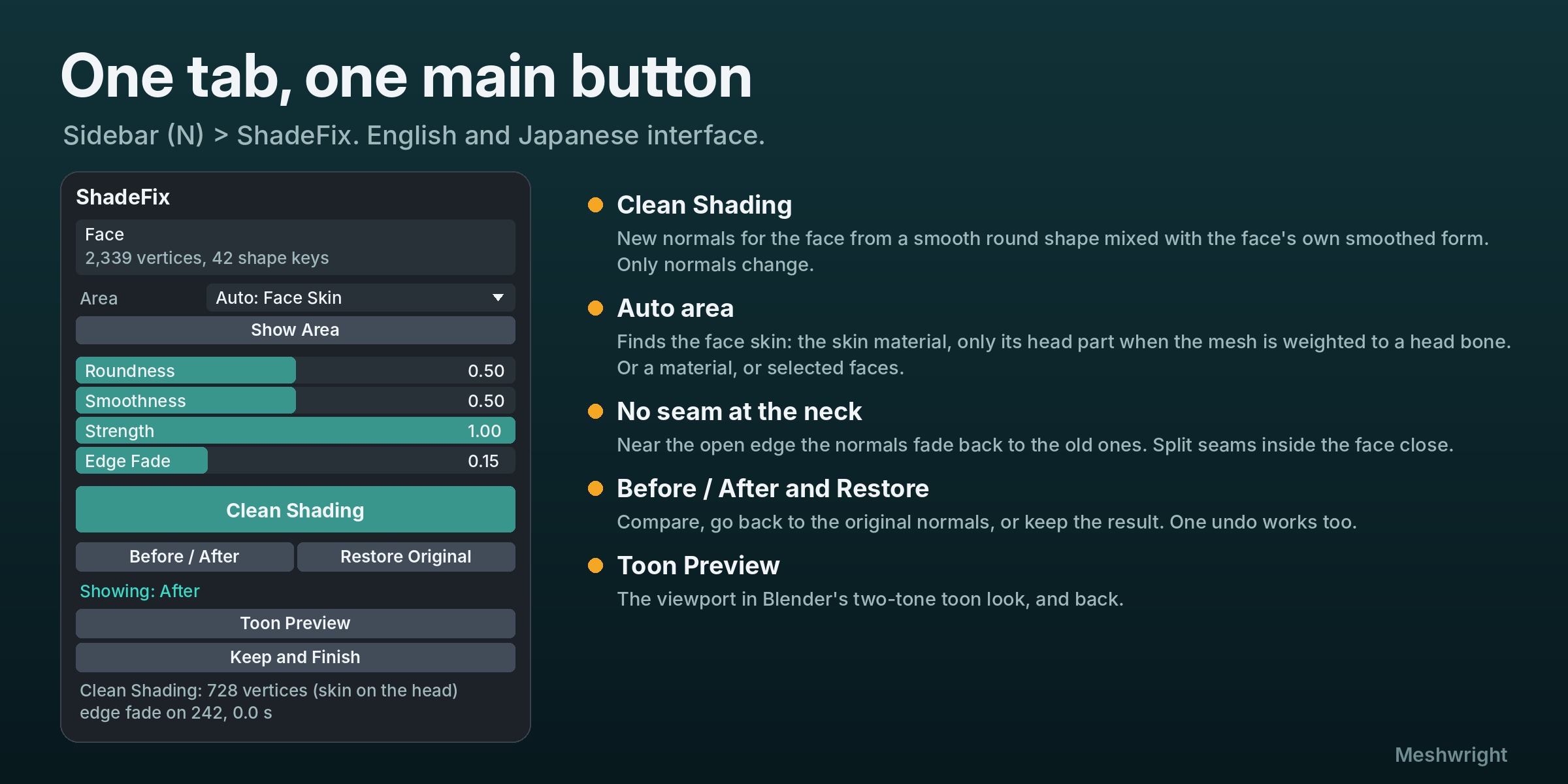
- Press Clean Shading. ShadeFix finds the face's skin by itself and gives it clean normals.
- Press Toon Preview to see the shading, and Before / After to compare.
- Adjust Roundness and Smoothness if you like, and press Clean Shading again. It always starts from the original normals.
What it does
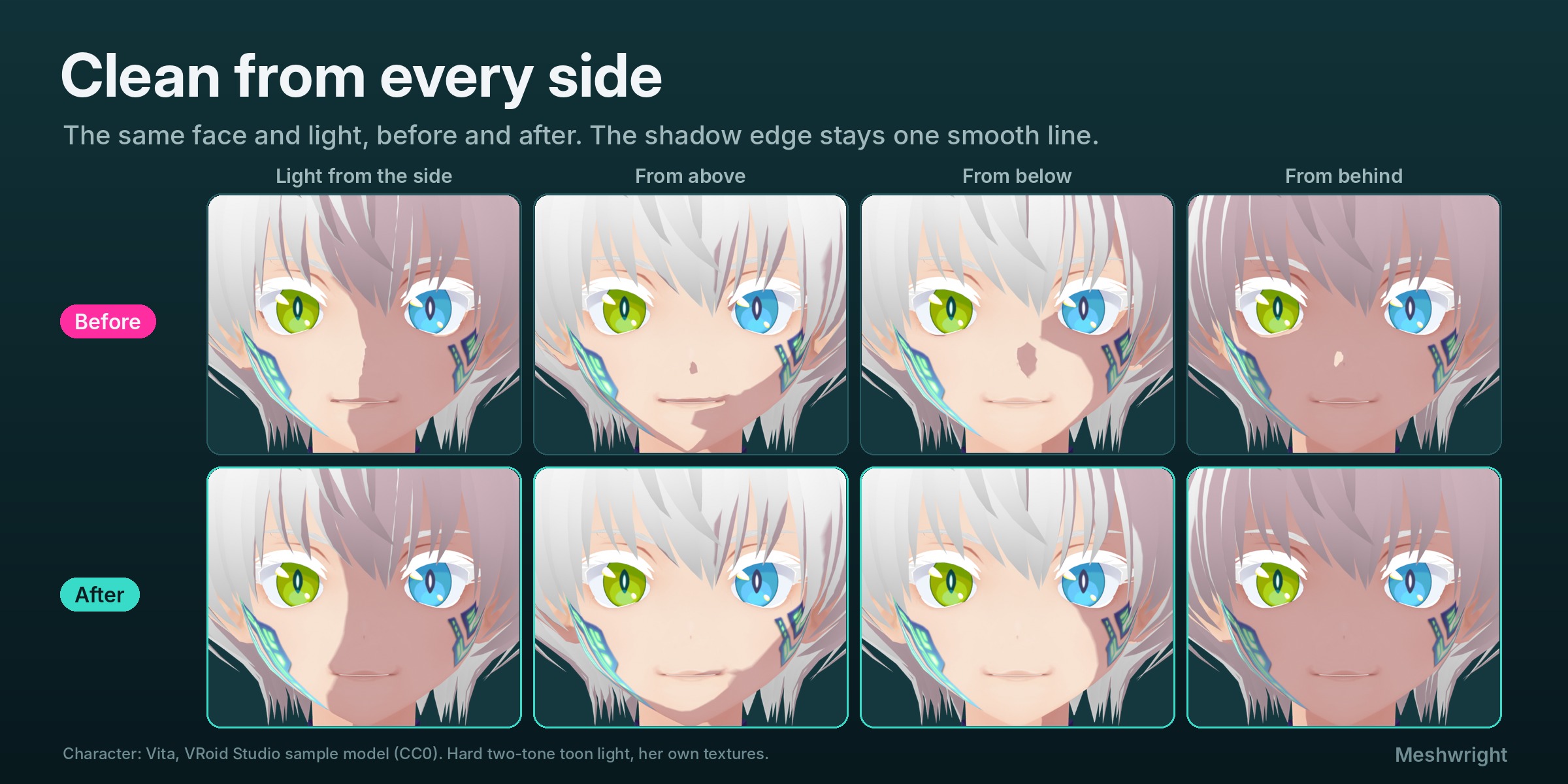
- Clean normals from a round stand-in shape. The face shades like a smooth, slightly egg-shaped head mixed with its own form smoothed out: the nose, lips and eye sockets stop making blotches, and the shadow edge sweeps across the face in one clean line as the light turns.
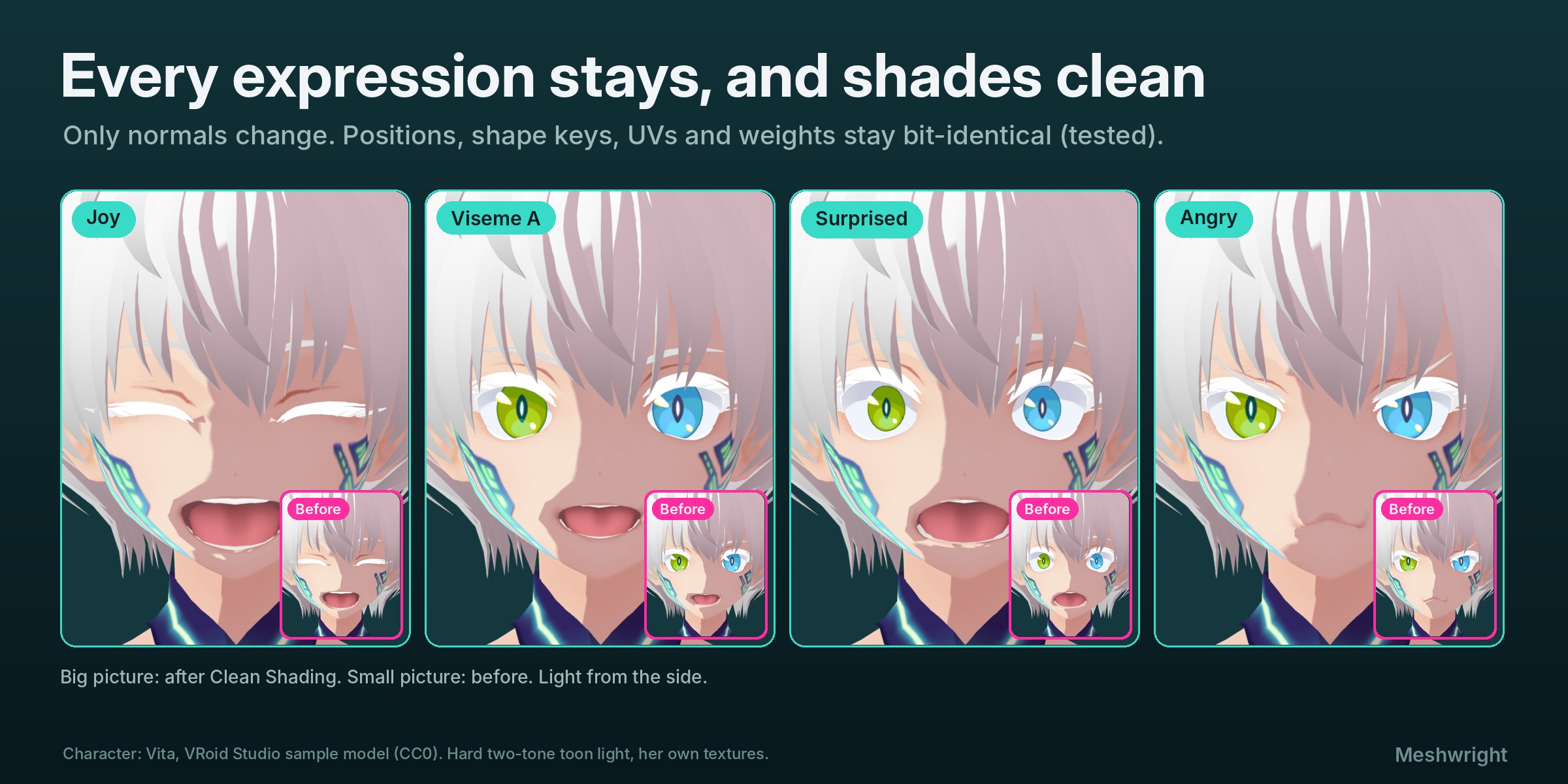
- Shape keys kept. Only the normals change. Vertex positions, every shape key, UVs, vertex group weights and materials stay bit-identical, so every expression, viseme and face tracking key still works, and shades clean too.
- Finds the face by itself. Auto takes the skin material, and only the head part of it when the mesh is weighted to a head bone (VRoid / VRM, Mixamo, Rigify, Auto-Rig Pro, MakeHuman and more). Or pick a material, or select faces yourself. Show Area selects what will change.
- No seam at the neck. Near the open edge of the area the normals fade back to the old ones, so the face meets the neck and body without a line. Split seams inside the face get one normal, so they disappear.
- Safe on any face. No normal turns more than 80 degrees from its surface, so nothing shades inside out.
- Before / After, Restore Original, Keep and Finish. Compare, go back to the original normals, or keep the result and remove the stored copy. One undo also brings the old normals back.
- Exports as usual. The normals are part of the mesh: FBX and glTF export keep them (tested), nothing to apply.
- Toon Preview switches the viewport to Blender's two-tone toon look and back.
- English and Japanese interface.
What it does not do
- It changes normals only. It does not change shaders or materials, and it does not make shadow maps (SDF). An unlit material shows no difference.
- It works on the active mesh. Run it once per mesh.
- It is not a hand editor for single normals.
Tested
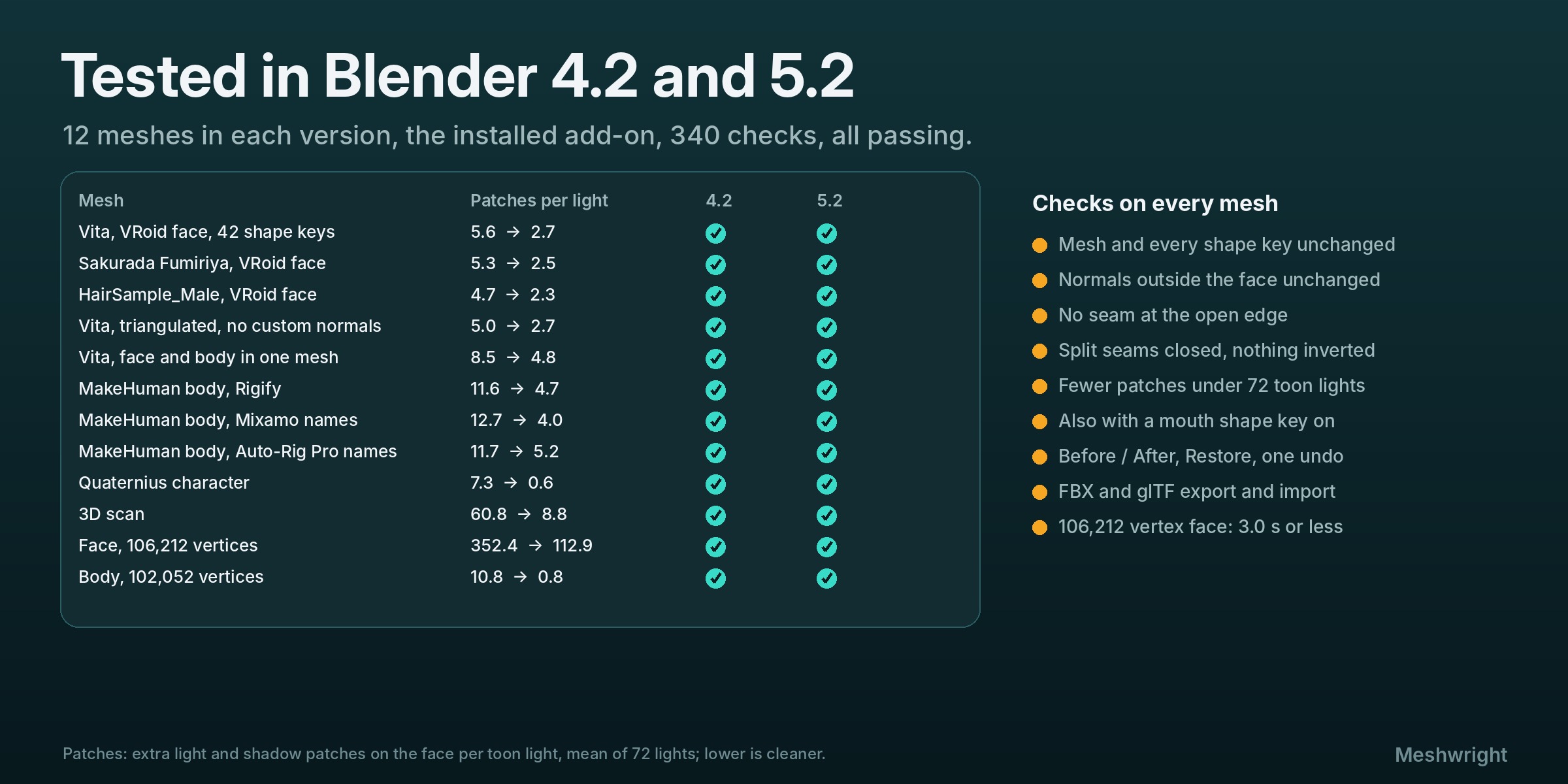
Blender 4.2 LTS and 5.2 LTS, the installed add-on run on 12 meshes in each version, 340 checks, all passing: three VRoid faces with 40 or more shape keys (Vita, Sakurada Fumiriya, HairSample_Male), a triangulated face without custom normals, face and body in one mesh, MakeHuman with Rigify, Mixamo and Auto-Rig Pro names, a Quaternius character, a 3D scan, a 106,212 vertex face and a 102,052 vertex body. Checks: the mesh and every shape key unchanged, normals outside the face unchanged, no seam at the open edge, split seams closed, no inverted normals, fewer light and shadow patches under 72 toon lights (also with a mouth shape key on), Before / After, Restore, one undo, FBX and glTF export and import. On the VRoid faces the extra light and shadow patches per light dropped by about half; Clean Shading took under 0.1 s on them and 3.0 s or less on the 106,212 vertex face.
Install
Edit > Preferences > Get Extensions, the arrow menu at the top right, Install from Disk, pick shadefix-1.0.0.zip. Or drag the zip into Blender. The ShadeFix tab appears in the 3D Viewport sidebar (press N).
Characters in the pictures: Vita, Sakurada Fumiriya and HairSample_Male, VRoid Studio sample models (CC0), with their own textures and a hard two-tone toon light.
AI-assisted: AI coding assistants helped write parts of the code, the tests and the texts. Every picture is a Blender render of the add-on's real result.