
商品説明
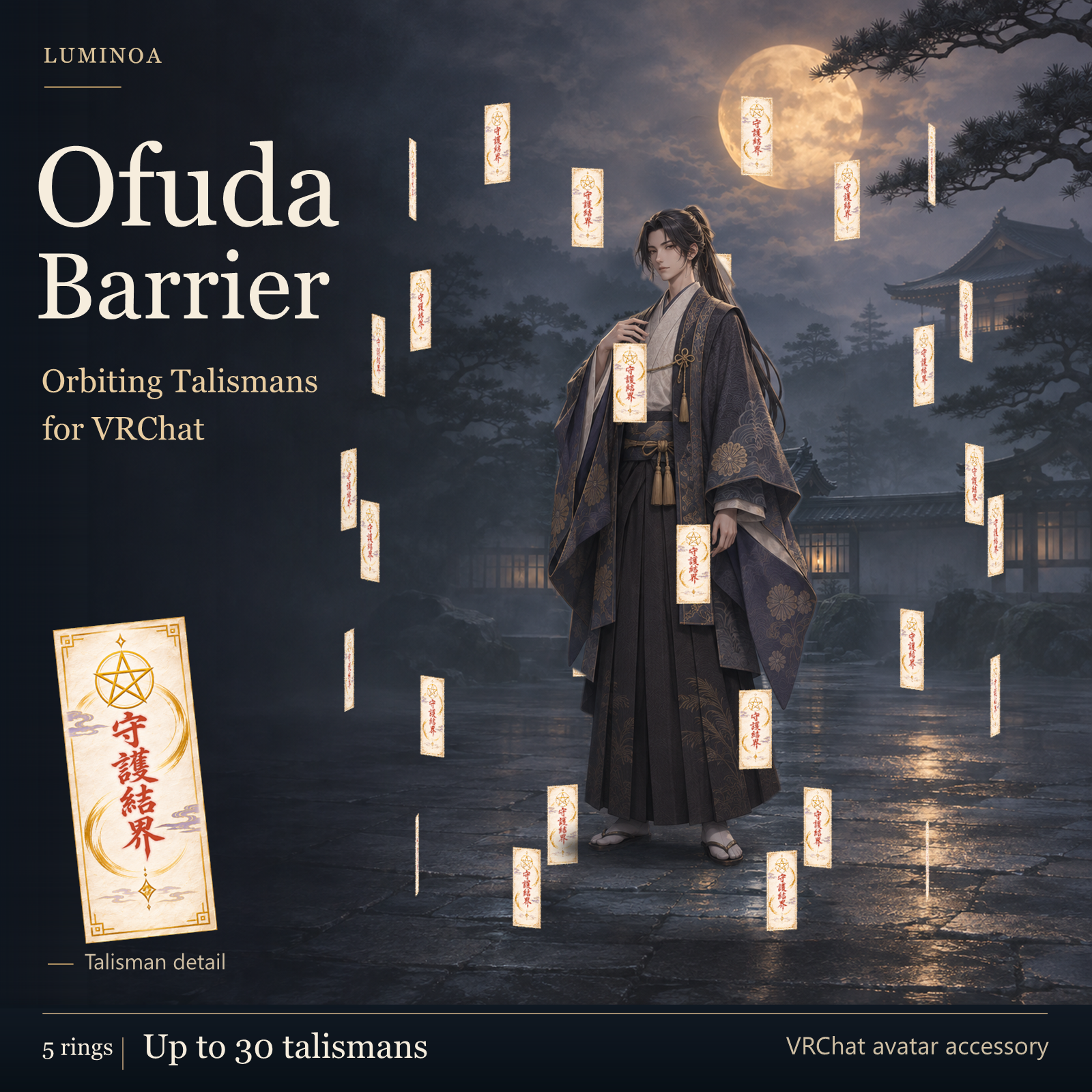
Ofuda Barrier — Orbiting Talismans for VRChat
Washi paper talismans circle your avatar in five rings. Each one bears gold detailing and the brush-written characters 守護結界 (“protective barrier”). Use one talisman per ring to frame your outfit, or widen the orbit and let all 30 sweep around you for a full-body ward inspired by Japanese fantasy.
Choose how the talismans move
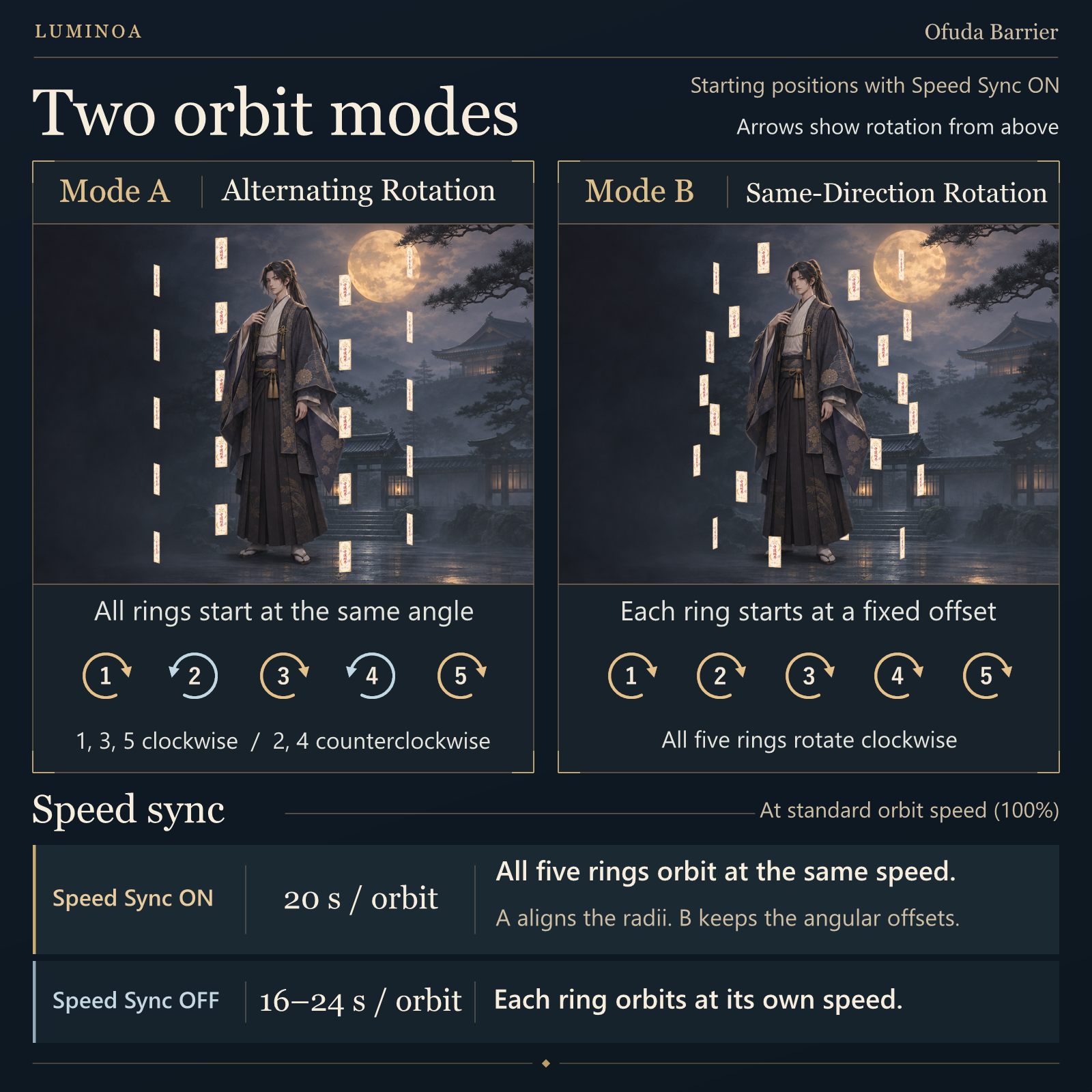
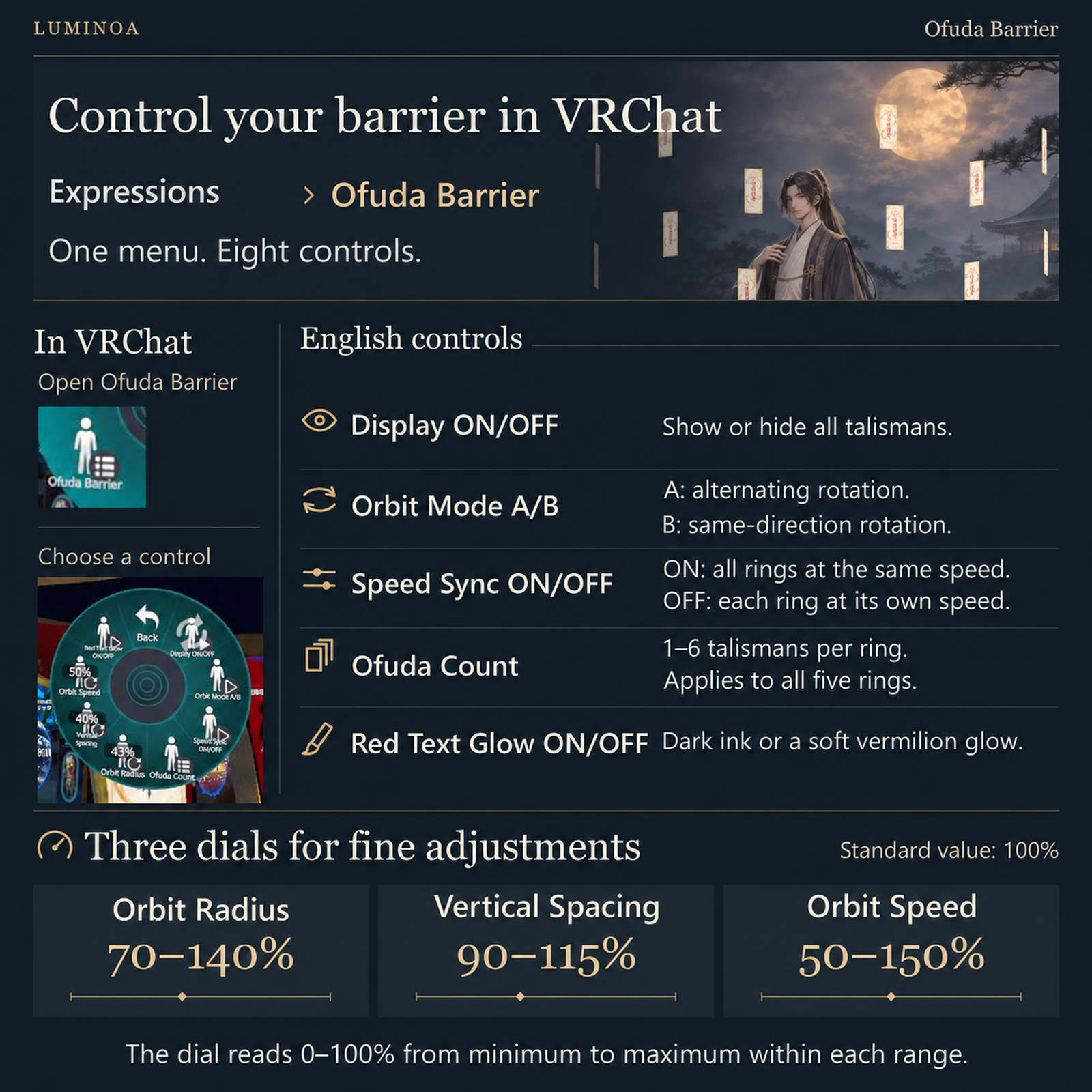
Mode A sends neighboring rings in opposite directions, so the talismans sweep past one another. In Mode B, all five rings turn the same way, with each ring starting at a slightly different angle.
Turn Speed Sync on to make all five rings orbit at the same speed. In Mode A, all five rings also use the same radius. In Mode B, the rings keep their offset angles. Turn sync off to let each ring move at its own pace.
Shape the barrier in VRChat
Open Expressions > Ofuda Barrier to adjust the accessory from its English menu.
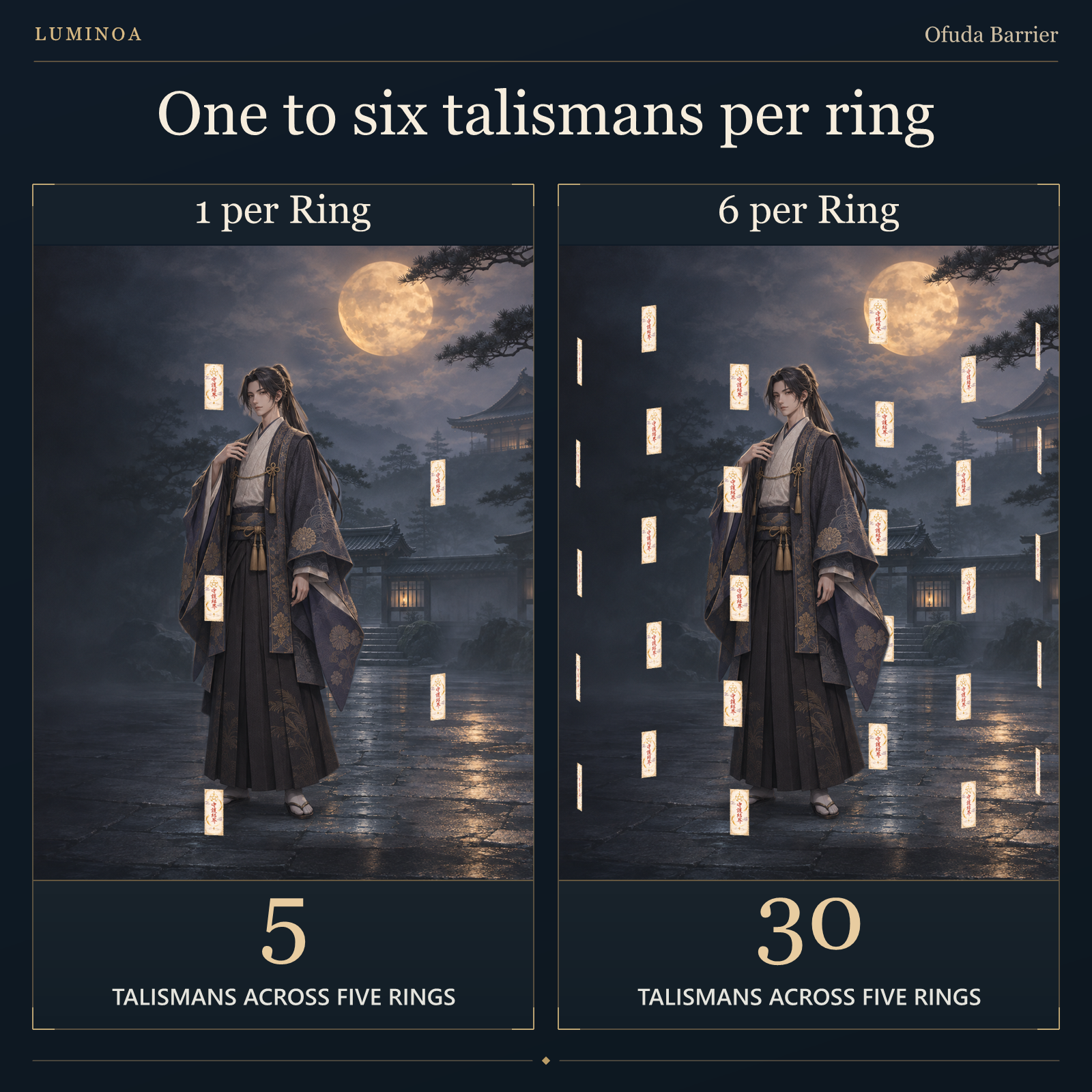
• Ofuda Count — Choose 1–6 talismans per ring. One selection applies to all five rings, giving you 5–30 talismans in total.
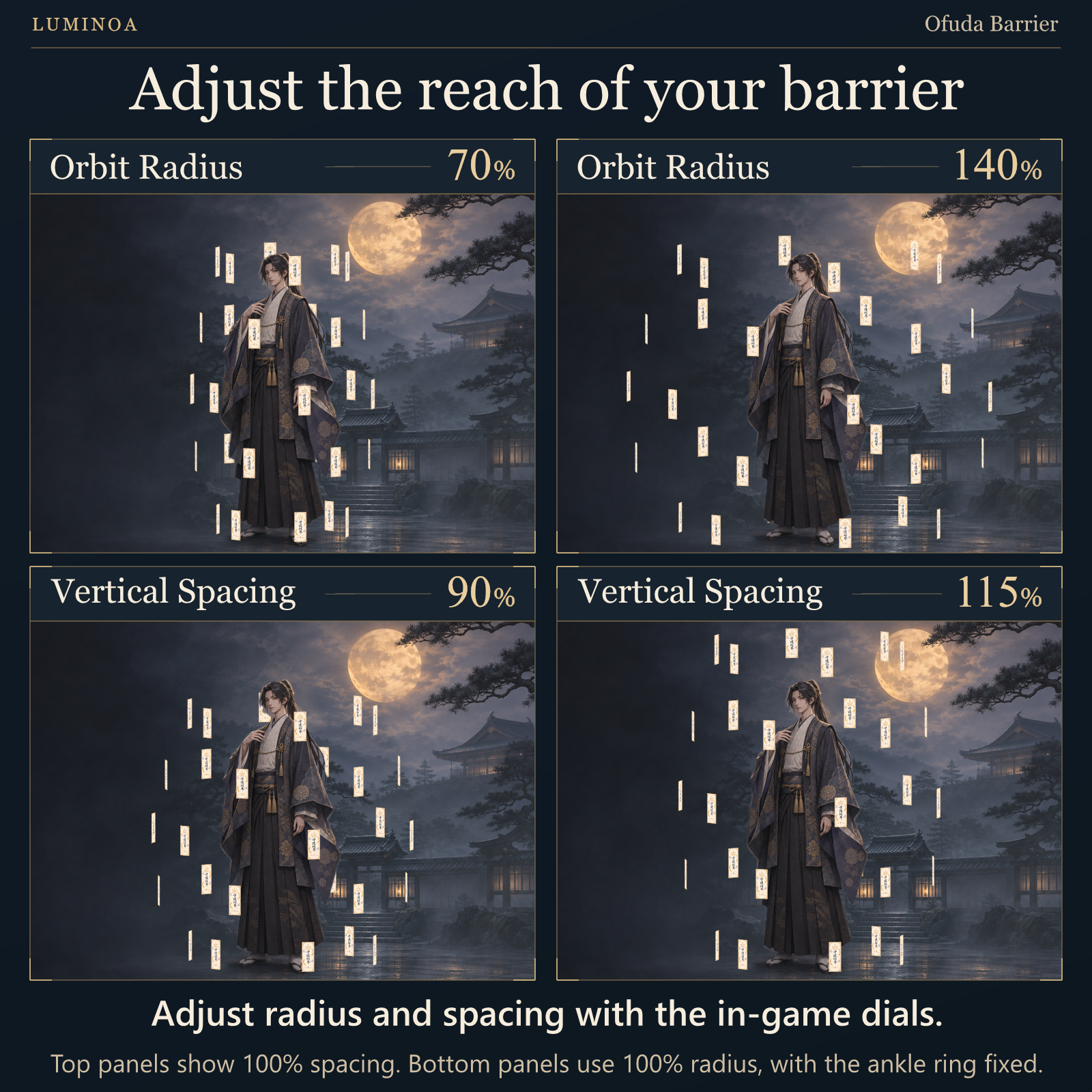
• Orbit Radius — Bring the talismans closer or send them farther out, from 70% to 140% of the standard radius.
• Vertical Spacing — Tighten or widen the gaps between rings, from 90% to 115% of the standard spacing. The ankle ring stays in place.
• Orbit Speed — Slow the entire barrier down or speed it up, from 50% to 150% of the standard speed.
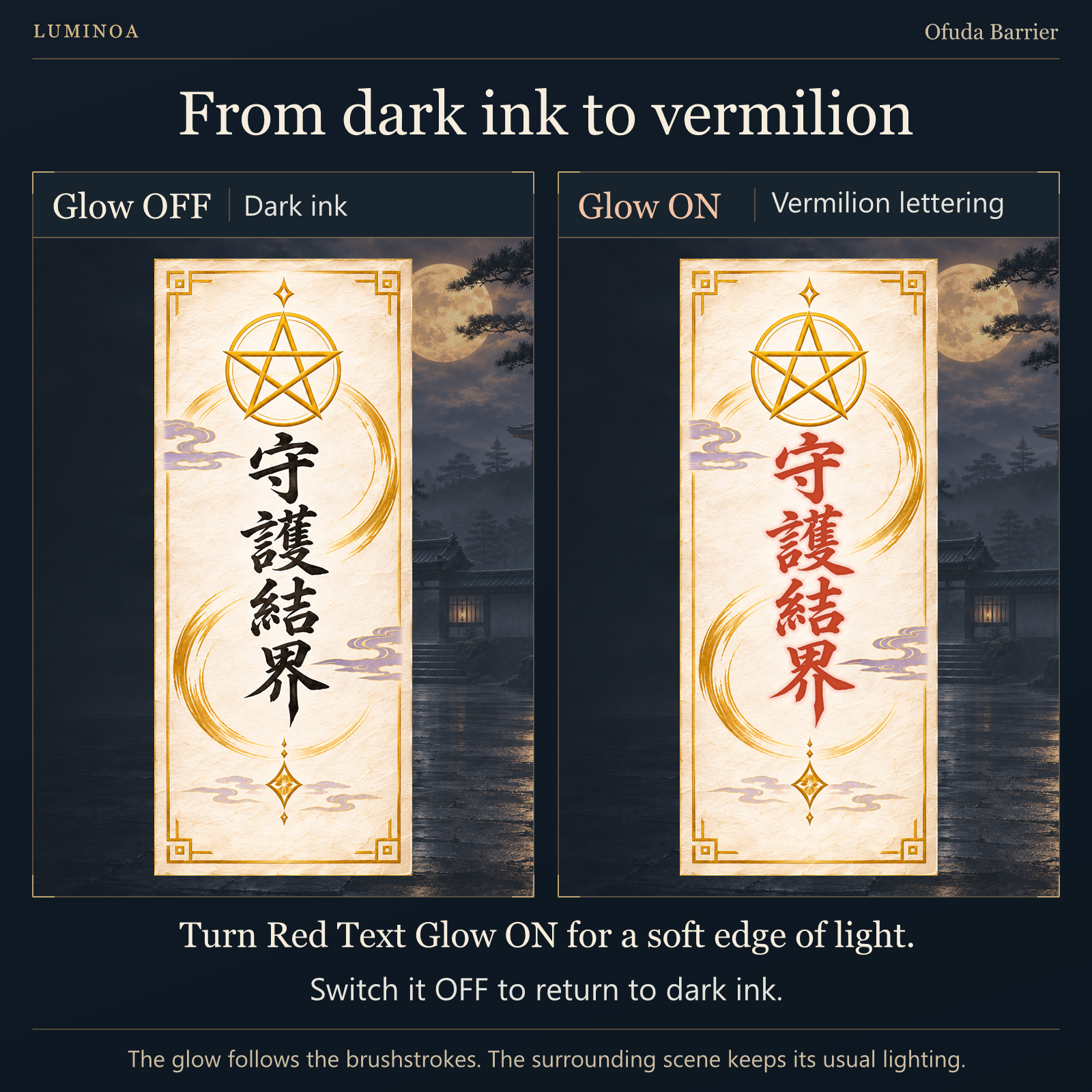
• Red Text Glow ON/OFF — Switch from dark ink to vermilion lettering with a soft glow along the brushstrokes. The effect stays on the lettering, even as the talismans move.
• Display ON/OFF — Hide the whole barrier and bring it back with your count and orbit settings intact.
What’s included
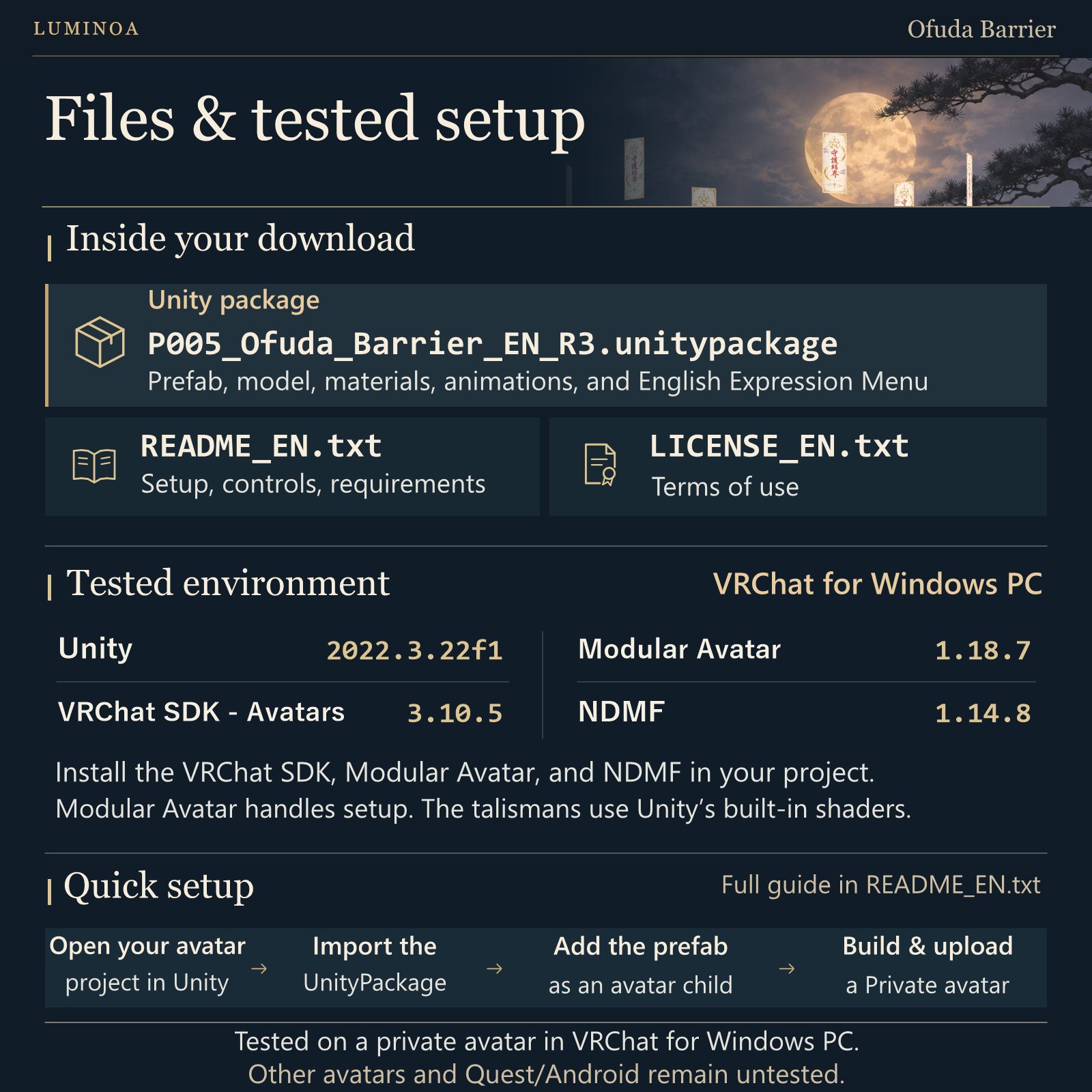
P005_Ofuda_Barrier_EN_R3.unitypackage — The ready-to-use prefab, talisman model, textures, materials, orbit animations, and English menu.
README_EN.txt — Installation instructions and a guide to all eight controls.
LICENSE_EN.txt — Full terms of use.
Requirements and compatibility
Tested in VRChat for Windows PC on a private test avatar with the following versions.
• Unity 2022.3.22f1
• VRChat SDK - Avatars 3.10.5 (Base 3.10.5)
• Modular Avatar 1.18.7 and NDMF 1.14.8
The accessory uses Unity’s built-in shaders. Other avatars, Quest/Android, and fresh installations in a buyer’s project remain untested.
Quick setup
1. Open your avatar’s Unity project and make sure the SDK, Modular Avatar, and NDMF are installed. Import the included UnityPackage.
2. In the Project window, find Assets/P005/EN/Ofuda_Barrier_EN_R3.prefab. Drag it onto your avatar’s name in the Hierarchy so it becomes a direct child of the avatar root.
3. Check the fit, save the scene, and upload your avatar with visibility set to Private. Modular Avatar adds the menu and animations during the build.
License highlights
Individual and organizational purchasers may modify the accessory and use it on their own Private avatars, including in public instances. Commercial images, videos, and monetized streams are allowed as long as viewers cannot extract the asset. Credit is optional.
Redistribution and resale of the original or modified assets are prohibited, as is placing them on Public avatars that others can use.
If you hire someone to set up or modify the accessory, you may temporarily share the files they need under Section 4 of LICENSE_EN.txt. They must agree to those terms before receiving the files and delete all copies containing the asset when the work is complete.